![Ramp_Logo_Saphire-Nov-06-2023-11-33-51-7748-PM.png]](https://support.ramprfid.com/hs-fs/hubfs/Ramp_Logo_Saphire-Nov-06-2023-11-33-51-7748-PM.png?height=39&name=Ramp_Logo_Saphire-Nov-06-2023-11-33-51-7748-PM.png)
When Ramp's Shopify integration is switched on, it requires specific access scopes to be added from the Shopify Admin Portal in order to sync.
How to find API Access Scopes
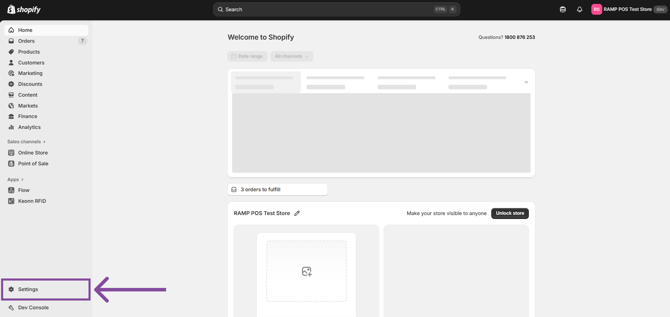
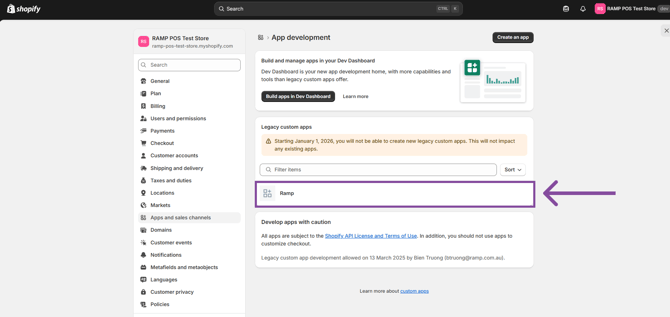
1. Log in to the Shopify Admin Portal and click on Settings.
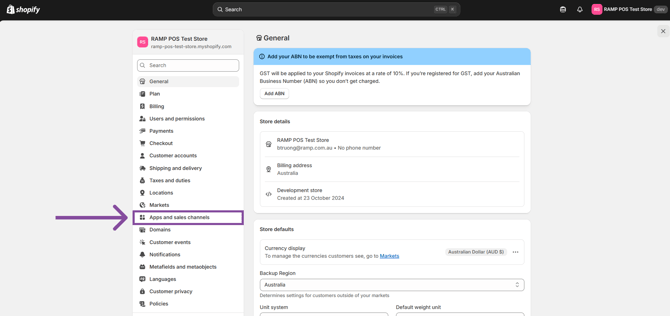
2. Click on Apps and Sales Channels.
3. Click on Develop Apps.
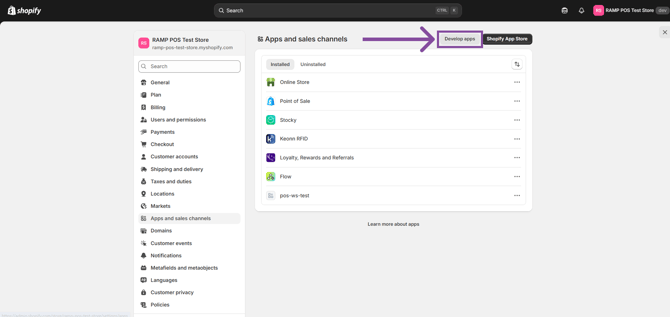
4. Under Legacy Custom Apps, click on the app named Ramp.
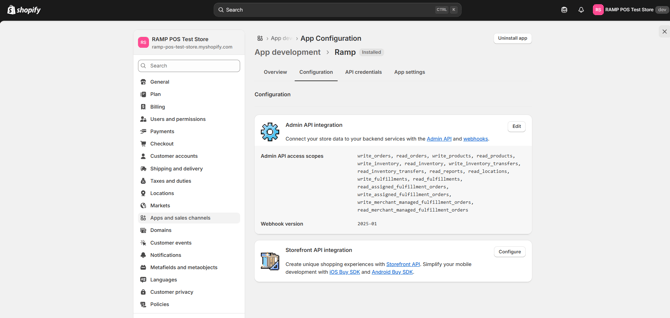
5. In the menu at the top, click on Configuration.
6. You can see the list of Admin API access scopes. Click on Edit to add or remove scopes from permissions.
What Access Scopes should be added?
The required access scopes depends on what information you want to be synced from your Shopify account. Use the below table as a guide for what scopes to add.
| Shopify Feature | Ramp Feature | Access Scopes required |
| Location | Place | write_locations, read_locations |
| Product | Sku | write_products, read_products |
| Transfer | Transfer Order | write_inventory_transfers, read_inventory_transfers |
| Order | Sales Order |
read_assigned_fulfillment_orders write_fulfillments, read_fulfillments write_merchant_managed_fulfillment_orders, read_merchant_managed_fulfillment_orders |
| Inventory | Stock On Hand |
write_inventory, read_inventory |
Purchase Orders are managed through Stocky, so the Stocky API Key is required to sync them with Ramp.
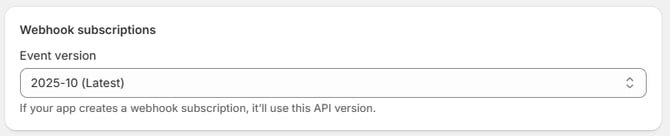
What should the Webhook Subscription - Event Version be?
The selected version should be 2025-01 or later.