![Ramp_Logo_Saphire-Nov-06-2023-11-33-51-7748-PM.png]](https://support.ramprfid.com/hs-fs/hubfs/Ramp_Logo_Saphire-Nov-06-2023-11-33-51-7748-PM.png?height=39&name=Ramp_Logo_Saphire-Nov-06-2023-11-33-51-7748-PM.png)
Calibrating your SATO printer ensures it correctly detects the media (labels or tags) and prints in the correct position without cutting off content or skipping labels.
When to Calibrate
You should calibrate the printer if you experience any of the following:
-
Labels feeding incorrectly
-
Prints starting in the wrong position
-
Skipped labels
-
Recently changed media type or label size
Calibrating the Printer
-
When the printer is in online mode, press the
 button on the operator panel to change to offline mode.
 -
Press the
button to show the Settings menu.
- 4. Press the
 buttons to select Printing and then press the
  button.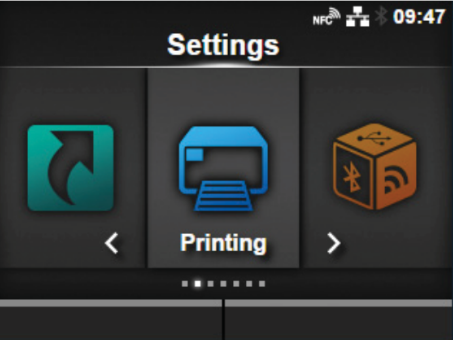
- Press the
buttons to select Advanced and then press the
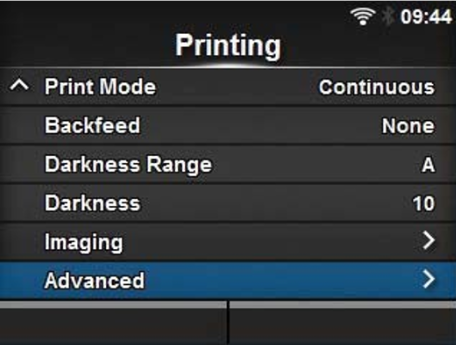
-
Press the
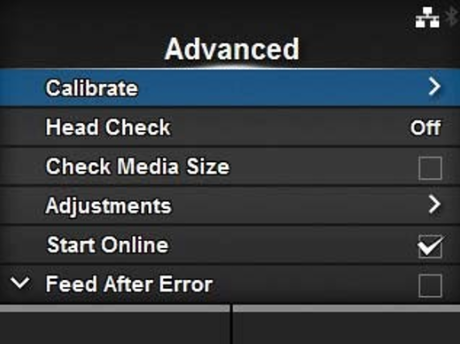
- Press the
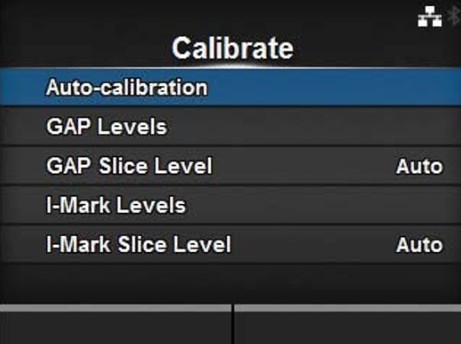
- Open the print head.
-
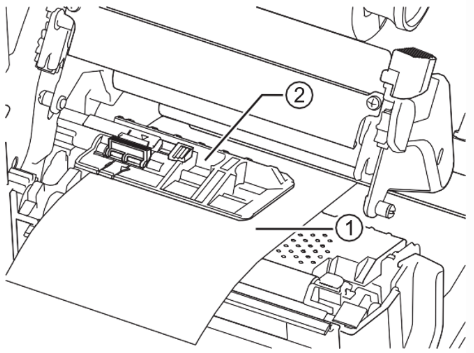
Pass the media 1 below the media sensor guide 2. If you are using labels, remove the label from the liner. Align it so that the media sensor does not sense the I-mark (black mark).
- Close the print head.
-
Press the
-
Press
-
The sensor adjustment result shows. To exit the adjustment, press the right soft button.
-
Set to offline mode. Press the right soft button to confirm that the media feeds correctly.
-
If the media does not feed correctly after the Auto-calibration, clean the sensor portion and then try again.