![Ramp_Logo_Saphire-Nov-06-2023-11-33-51-7748-PM.png]](https://support.ramprfid.com/hs-fs/hubfs/Ramp_Logo_Saphire-Nov-06-2023-11-33-51-7748-PM.png?height=39&name=Ramp_Logo_Saphire-Nov-06-2023-11-33-51-7748-PM.png)
Supported Platforms
-
Windows 7 or later
-
Ethernet or USB connectivity
Printer Setup
Powering the Printer
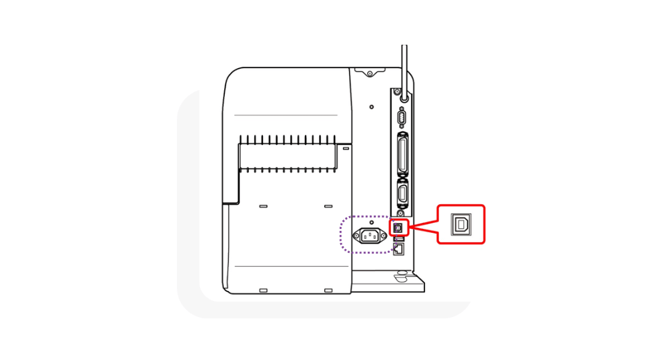
Connect the supplied power cable to the power port on the rear of the printer. Connect the opposite end of the cable to a functioning power outlet. Verify that the printer powers on.
Establishing Communication with the Printer
The printer supports communication through USB or Ethernet.
USB Connection
-
Connect the USB Type B connector to the printer.
-
Connect the USB Type A connector to the computer.
Ethernet Connection (Direct)
-
Connect one end of the Ethernet cable to the printer.
-
Connect the opposite end to the computer.
Ethernet Connection (Network)
-
Connect the printer to a network switch using an Ethernet cable.
-
Verify that all computers requiring access are connected to the same network.
Loading Label Media
Load label media using the Face Out Media path.
For detailed procedures, refer to the corresponding instructional video.
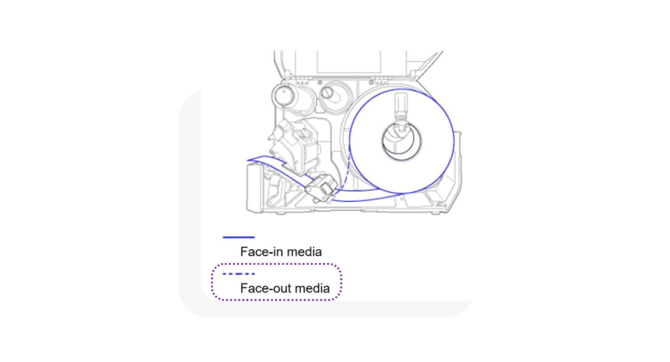
For further information, follow the video below.
Loading Ribbon Media
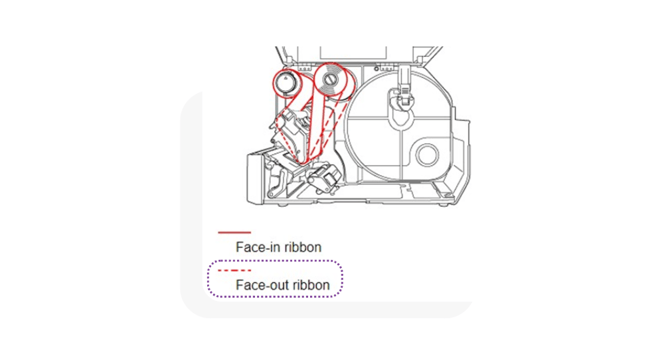
Load thermal ribbon using the Face Out Ribbon path.
For detailed procedures, refer to the corresponding instructional video.
Printer Configuration
Printer settings may be configured through the printer interface or through a web browser.
-
Browser-based configuration requires an Ethernet connection.
-
USB-connected printers must be configured using the SATO configuration utility.
Configuring the Printer via the Browser
-
Enter the printer IP address into the browser address bar.
-
Select Login.
-
Enter the default password: 0310.
-
Access the Printing, Interface, or Tools sections as required.
Configuring the Printer via the Printer
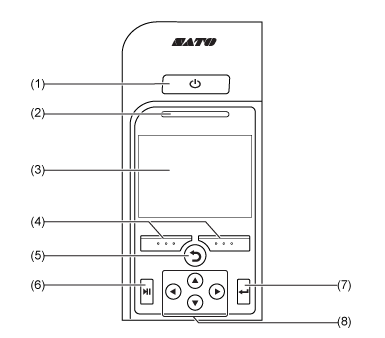
- Power Button: Hold the power button for 2 seconds to either power on or power off the printer.
- LED Indicator: Will indicate the current status of the printer.
- Color LCD: Displays information about the printer, print job or settings.
- Online/Feed Buttons: Buttons which will allow the user to set the online/offline status of the printer and feed the label media when offline. These buttons are context aware and will change depending on the current menu or task.
- Back Button: Returns to the previous screen.
- Line Button: Toggles between Online/Offline mode and will play/pause any relevant videos.
- Enter Button: Confirm the selected item or setting value.
- Navigation Buttons: Navigate the selection in the screen menu.
Accessing Printer Information
Press and hold the Up Arrow button for 5 seconds to display printer information, including the IP address.
Accessing Configuration Menus
Press Enter to open the system menus.
Available menus include:
-
Print Settings
-
RFID Settings
-
Profile Management
-
System Tools