![Ramp_Logo_Saphire-Nov-06-2023-11-33-51-7748-PM.png]](https://support.ramprfid.com/hs-fs/hubfs/Ramp_Logo_Saphire-Nov-06-2023-11-33-51-7748-PM.png?height=39&name=Ramp_Logo_Saphire-Nov-06-2023-11-33-51-7748-PM.png)
Observed Behaviour
The following printing behaviour may indicate label misalignment:
-
Labels feed too far forward or backward
-
Labels feed inconsistently and stop at different positions between prints
-
Printing begins outside the label boundary
-
Printed content is vertically offset across multiple labels
-
Labels are skipped during feeding
Resolution
Restarting the SATO CL4NX
Restart the SATO CL4NX before applying configuration changes to clear any unintended state.
For restart instructions, refer to the dedicated CL4NX restart article.
Calibrating the SATO CL4NX
Media calibration ensures that the printer correctly detects label gaps or marks and positions print output accurately.
✅ It is recommended to recalibrate the printer if you've recently changed media types or label size to ensure proper gap detection.
-
Press the Offline button on the operator panel to switch the printer to Offline mode.
-
Press the Menu button
to open the Settings menu.
-
Use the navigation buttons
 to select Printing, then press Enter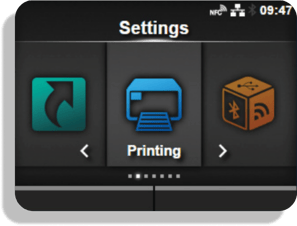
-
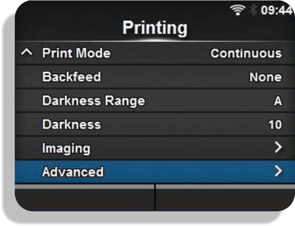
Select Advanced, then press Enter
-
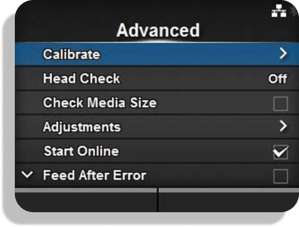
Select Calibrate, then press Enter
-
Select Auto Calibrate, then press Enter
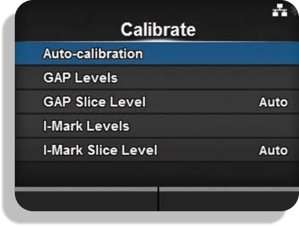
-
Prior to starting the calibration, the label liner will need to be prepared correctly.
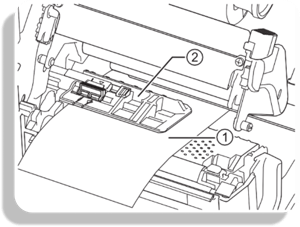
-
Open the print head on the printer.
-
Feed the media using the media sensor guide. If there are labels on the liner, remove all labels from the liner at the sensor position. This would normally require removing 3 - 4 labels.
-
Close the print head once the liner is aligned.
-
-
Press start to begin the calibration.
After calibration completes:
-
If Calibration Success is displayed, the process is complete.
-
If Calibration Failed is displayed, repeat the procedure and verify that the liner is correctly positioned before restarting calibration.
Return to the main screen and feed the labels to verify alignment.
Adjusting the Media Sensor
The media sensor position determines how the printer detects label gaps or marks during feeding.
-
Open the print head.
-
Adjust the media sensor guide so it aligns with the label gap or mark.
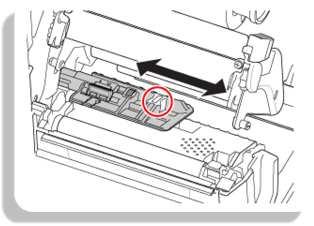
-
Verify the gap sensor is positioned directly over the label gap. The position of the gap sensor is indicated by the
 mark.
mark. 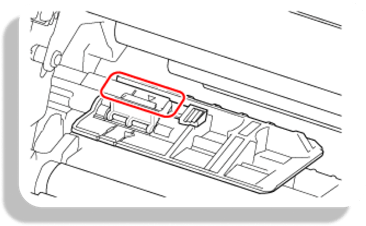
- Ensure the sensor is not positioned on the edge of the label or liner.
Adjusting the Media Guide
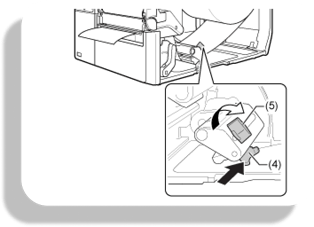
The media guide controls horizontal media positioning during printing.
-
Open the top cover of the printer.
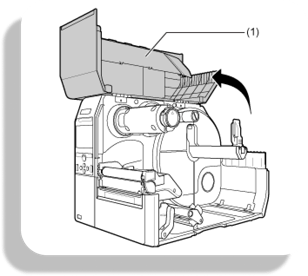
-
Move the head lock lever toward the rear to open the print head.
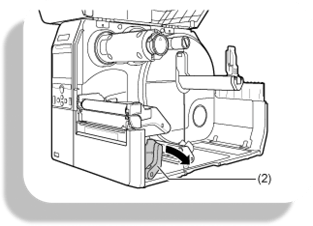
-
Turn the media guide adjustment knob counterclockwise to release the guide.
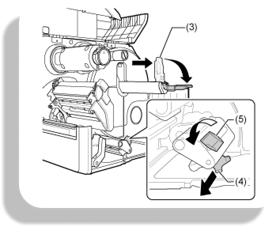
-
Load the media under the media guide.
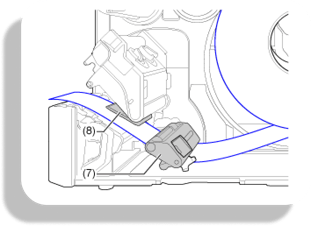
-
Slide and lightly position the guide against the media.
-
Turn the adjustment knob clockwise to lock the media guide in place.
-
Close the top cover.
Checking the Printing Dimensions
Incorrectly assigning the dimensions on the Printer can lead to it over or under printing if it is not measuring.
-
Press the Offline button on the operator panel to switch the printer to Offline mode.
-
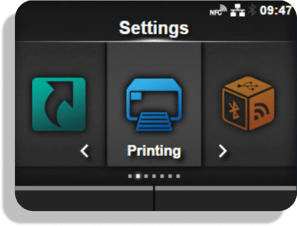
Press the Menu button
- Use the navigation buttons to select Printing, then press Enter
-
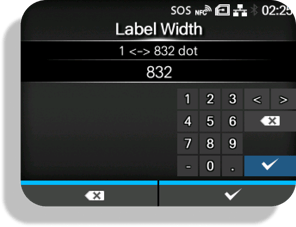
Under Label Width, change the value to match the width of the label.
-
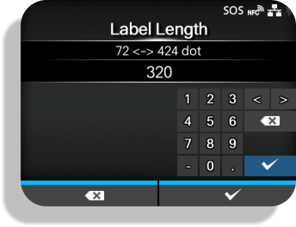
Under Label Length, change the value to match the length of the label.