![Ramp_Logo_Saphire-Nov-06-2023-11-33-51-7748-PM.png]](https://support.ramprfid.com/hs-fs/hubfs/Ramp_Logo_Saphire-Nov-06-2023-11-33-51-7748-PM.png?height=39&name=Ramp_Logo_Saphire-Nov-06-2023-11-33-51-7748-PM.png)
Order constraints define how closely a scanned order must match the expected quantities and item details before it can be submitted. They help ensure accuracy, prevent incorrect dispatching, and maintain stock integrity.
There are five types of constraints:
-
Over Only
-
Under Only
-
Exact
-
Allow All
-
Extended Property Constraint
1. Over Only
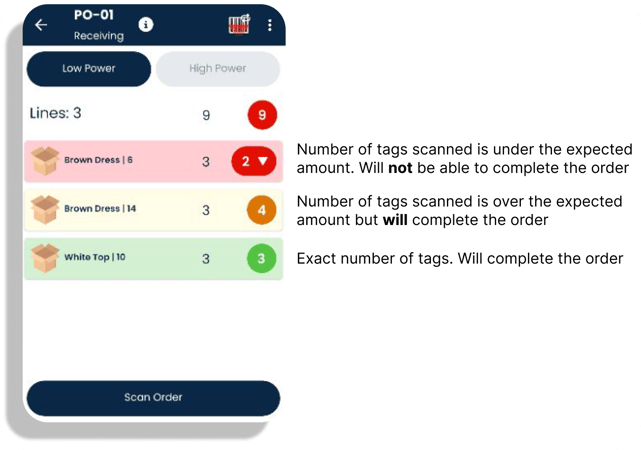
This constraint allows orders to be completed if the scanned quantity is equal to or greater than the expected amount. This constraint will allow you to submit scans that are under quantity as you can do multiple scans. However, it will not let you complete the order.
-
Not allowed: Scanning fewer items than expected
-
Purpose: Ensures no orders leave short-picked
-
Example: Order expects 10 units → 10 or more units acceptable, 9 is not
2. Under Only
This constraint allows orders to be completed if the scanned quantity is equal to or less than the expected amount. This constraint will not allow you to submit a scan if it is over the quantity.
-
Not allowed: Scanning more items than expected
-
Purpose: Prevents over-shipping and accidental stock loss
-
Example: Order expects 10 units → 10 or fewer units acceptable, 11 is not
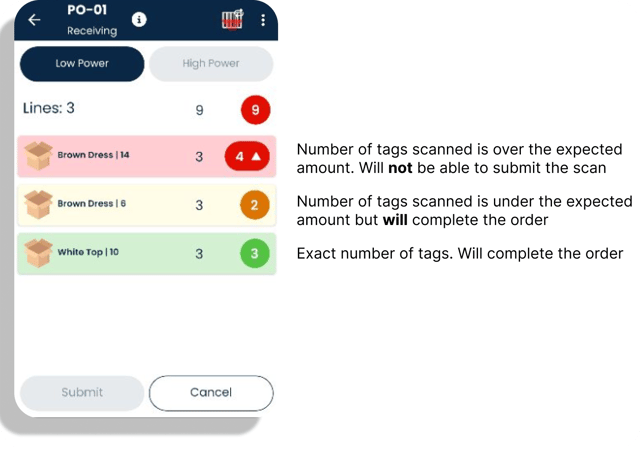
The upwards arrow shows that the quantity is over what is expected. The yellow indicates that is not what was expected but it is within the constraint since it is under.
3. Exact
The scanned quantity must match the order exactly.
-
Not allowed: Over-scanning or under-scanning
-
Purpose: Used when precision is critical (e.g., serialized assets, medical goods, high-value items)
-
Example: Order expects 10 units → only 10 is accepted
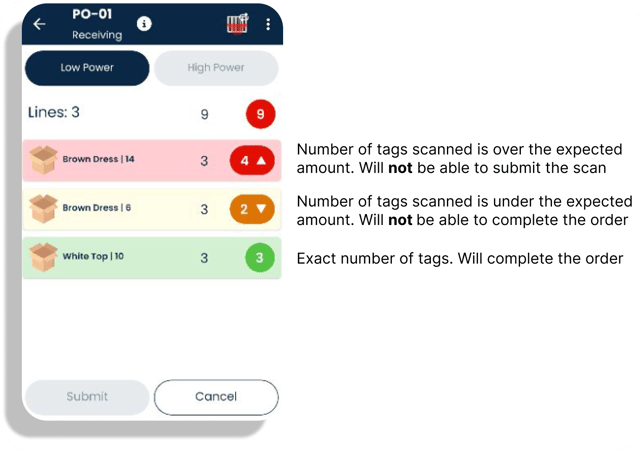
With an exact amount you can see that up and down arrows. The up arrow indicates that there is too many items and vice versa. If there is a SKU with quantity over the expected, it cannot submit.
4. Allow All
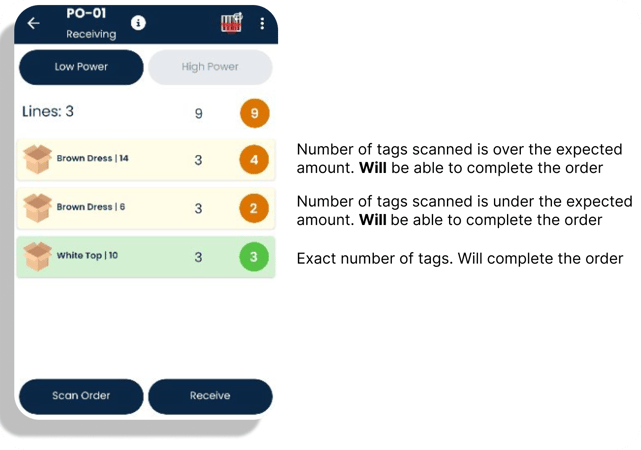
This constraint accepts any scanned quantity, regardless of the expected quantity.
-
Allowed: Over, under, or exact
-
Purpose: Flexible for unpackaged stock, loose returns, bulk counts, or unknown variances
-
Example: Order expects 10 units → 6, 10, or 14 are all acceptable
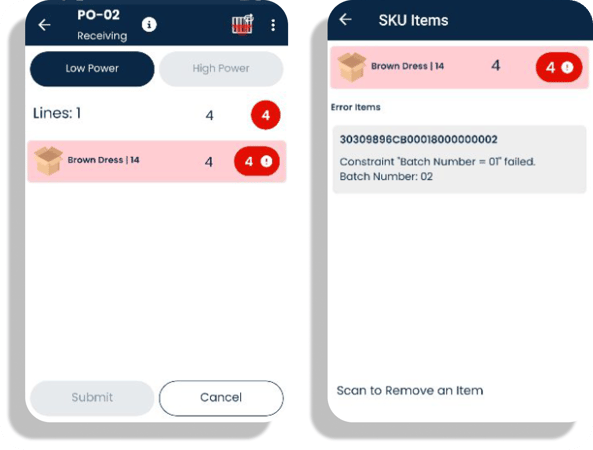
5. Extended Property Constraint
This constraint validates items based on item-level extended properties (e.g., batch, expiry date, grade).
-
Allowed: Only items matching the defined property
-
Purpose: Ensures the correct variation or batch is shipped
-
Example: If the order requires Batch Number = 01, items from Batch 02 are rejected, even if they are the same SKU.
Summary Table
| Constraint Type | Accepted Scan Quantity | Primary Use Case |
|---|---|---|
| Over Only | Expected or more | Prevent short-picks |
| Under Only | Expected or less | Prevent over-shipping |
| Exact | Exact match only | High-control accuracy |
| Allow All | Any amount | Flexible, mixed or unknown quantities |
| Extended Property | Only items with matching property | Batch/expiry/variant control |
For more information about how to configure constraints, please contact the Ramp Support team at support@ramp.com.au.