![Ramp_Logo_Saphire-Nov-06-2023-11-33-51-7748-PM.png]](https://support.ramprfid.com/hs-fs/hubfs/Ramp_Logo_Saphire-Nov-06-2023-11-33-51-7748-PM.png?height=39&name=Ramp_Logo_Saphire-Nov-06-2023-11-33-51-7748-PM.png)
The Customer Portal is a secure, login-protected space where you can track the status of your support requests and communicate with the Ramp support team in one place.
Prerequisites
Before logging in, verify that:
- You have received a registration email from Ramp
- You have an internet-connected device with a modern browser (Chrome, Edge, Firefox, or Safari)
- The email address you provide matches the one Ramp has on file
If you have not received a registration email, contact support@ramp.com.au.
Registering Your Account
Access to the Ramp Customer Portal is invitation-only. Ramp will send a registration email to the contact email address on file.
Completing Registration
- Open the registration email from Ramp.
- Select the registration link in the email body.
- On the registration page, enter a password that meets the displayed requirements.
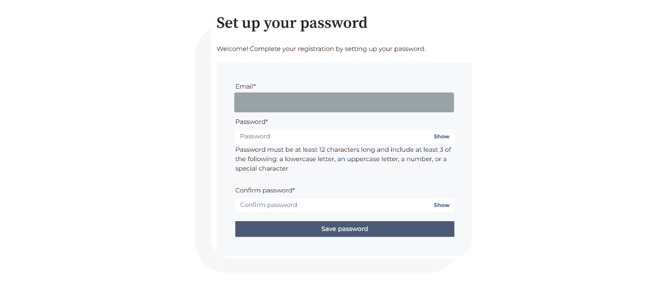
- Confirm the password, then select Save.
- You will be redirected to the portal login page.
The registration link is single-use. If the link expires or you did not receive the email, contact support@ramp.com.au to request a new invitation.
Logging In
Once your account is registered, you can access the portal at any time.
Signing In
- Navigate to the Customer Portal at https://support.ramprfid.com/tickets
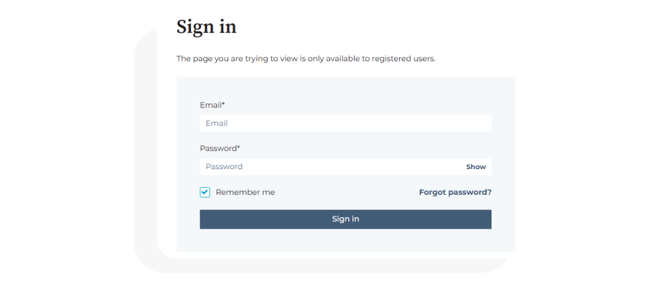
- Enter your registered email address.
- Enter your password.
- Select Sign in.
If you have forgotten your password, select Forgot password? on the login page and follow the prompts. A password reset link will be sent to your registered email address.
Viewing Tickets
After logging in, you will land on the ticket listing page, which displays all open and closed tickets associated with your account.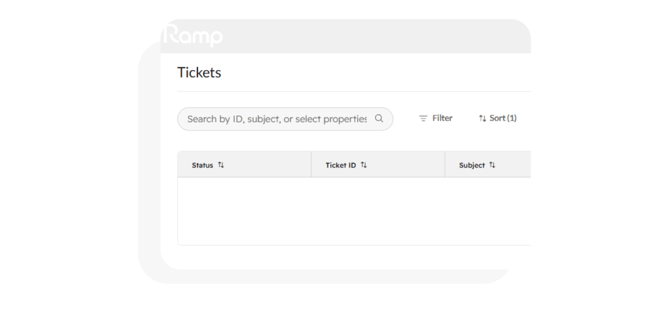
The following ticket details are visible by default:
- Status
- Ticket ID
- Subject
- Requested By
- Ticket Owner
- Created Date
- Last Activity Date
Filtering and Searching
-
- Use the search bar at the top of the ticket list to find a specific ticket by name or keyword.
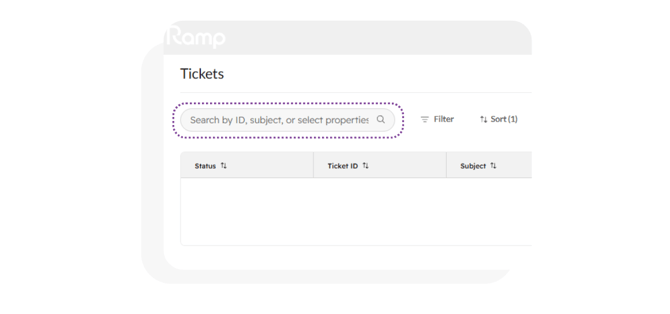
- Use the filter controls to narrow tickets by status, date range, or other available properties. If you have tickets across the organization, you can filter to see other tickets submitted by the organization.
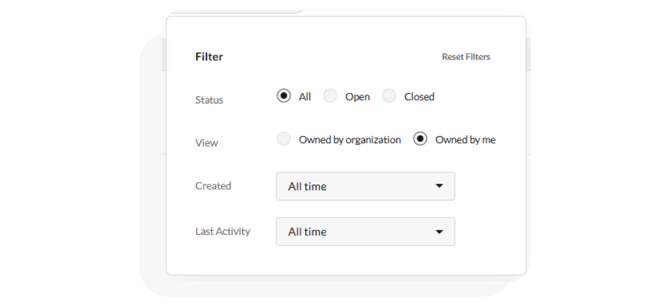
- Select a column header to sort the list.
- Use the search bar at the top of the ticket list to find a specific ticket by name or keyword.
Exporting Ticket Data
-
-
Select Export to CSV in the top right of the ticket list.

-
The export will include all data visible in the current view, including any filters applied at the time of export.
-
Viewing Ticket Details and Replying
To view the full conversation history and respond to a ticket:
- From the ticket listing page, select the ticket name to open the ticket details page.
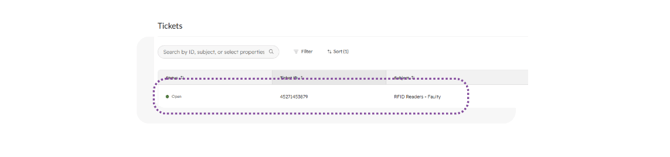
- Review the ticket properties and conversation history.
- To reply, enter your message in the text box at the bottom of the page.
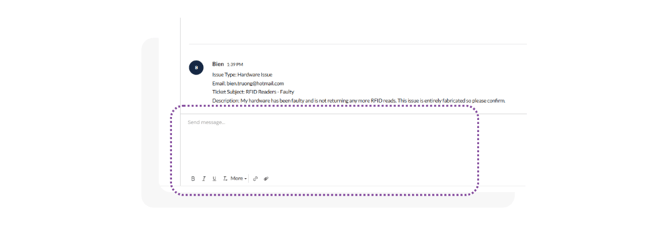
- Use the icons across the bottom of the editor to:
- Modify text style (bold, italic, lists)
- Attach files
- Select Send to post your reply.
Your reply will appear in the Ramp support team's help desk, and you will receive an email notification when the support team responds.
Only the original conversation thread associated with a ticket appears in the portal.
Submitting a New Ticket
If you need to raise a new support request, you can submit it directly from the portal.
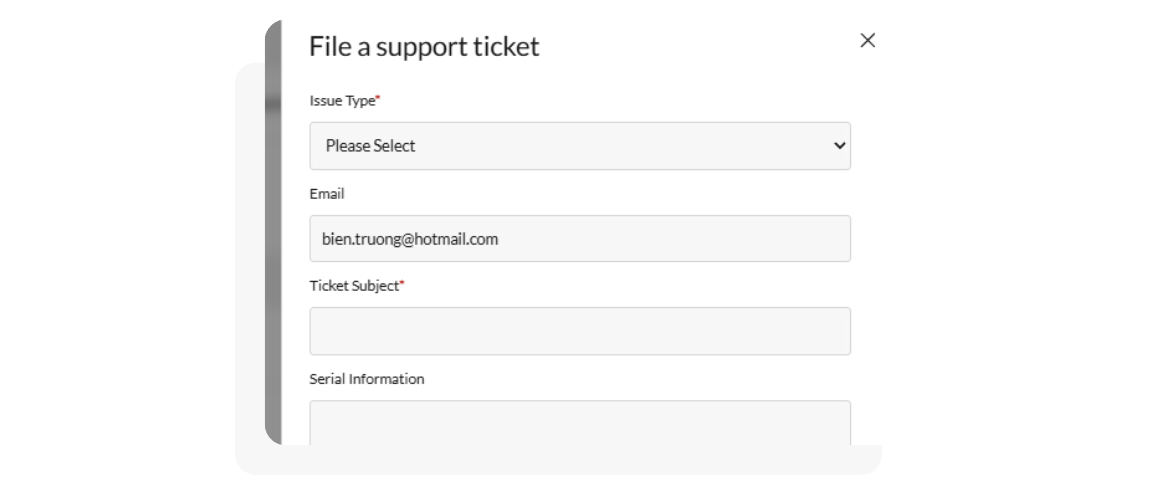
- From the ticket listing page, select File a Support ticket.
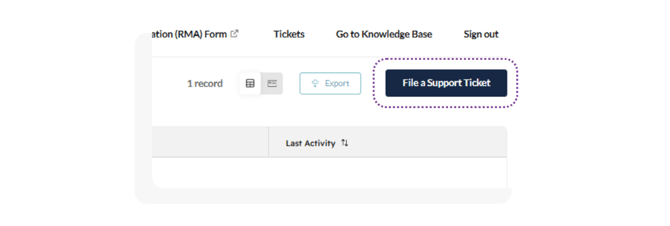
- Complete the support form, including:
- Issue Type
- Subject
- Description of the issue
- Any relevant attachments (screenshots, log files, photos)
- Any relevant serial information
- Review the information for accuracy.
- Select Submit.
The ticket will be automatically associated with your contact record. A new entry will appear in your ticket listing page within a few moments, and the Ramp support team will be notified.
You do not need to enter your email address when submitting a ticket through the portal — it is captured automatically from your logged-in session.
Logging Out
To end your session:
- Select your profile icon in the top right of the portal.
- Select Log out.
Escalation
If you experience issues with portal access, registration, or ticket submission, contact support@ramp.com.au and provide:
- Your registered email address
- Browser and version
- A description of the issue
- A screenshot of any error message displayed