
Geiger Search points you to a tagged item, like a metal detector: the closer you are, the higher the reading. Use it when you know an item is at the place but can't see it.
The reading tells you how strong the signal is, not which way to go. Find the direction first, then walk it.
What You Need
- A licensed Ramp handheld with its RFID reader. Geiger Search needs the reader, so it doesn't work on a phone or an ordinary Android device.
- A network connection, so the app can search for the product.
Open Geiger Search
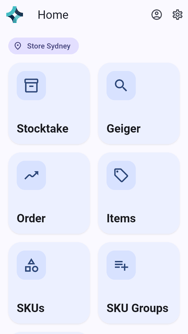
On the home screen, tap Geiger to open Geiger Search.
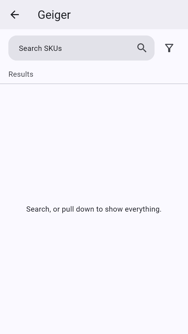
Search for the product by name, product number or barcode.
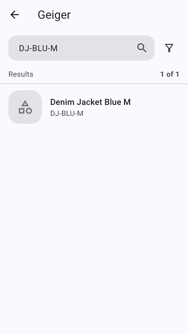
Tap the product you want to find.
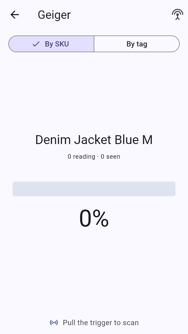
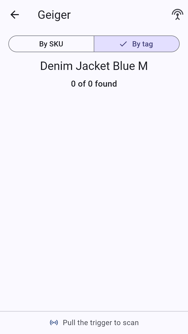
The locate screen opens at 0%.
Start Locating
Click the trigger to start. The percentage bar will continue to rise as you get closer to the tagged item.
Far away: a short bar.
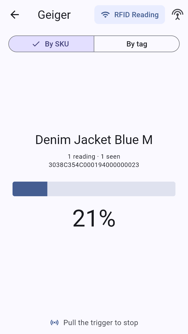
Getting closer: the bar fills.
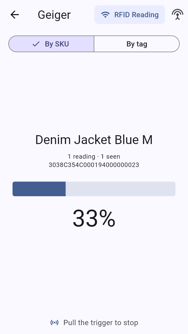
Right next to it: the bar is nearly full.
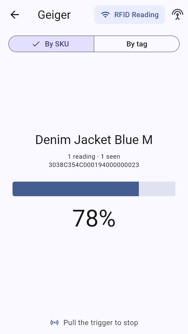
Follow the signal (see below). Other tags nearby don't move the bar. If you walk away from the item, or point the reader away, the bar fades.
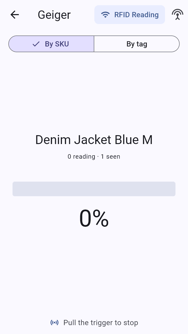
Click the trigger again to stop.
Follow the Signal
- Stand still and wave the device slowly from side to side, sweeping across the area in front of you. Pause for a moment at each end.
- Watch where the reading peaks. The direction with the highest percentage is the way to the item.
- Walk a few steps that way, then stop and sweep again.
- Keep moving towards the higher reading. If it drops, you've passed the item or turned away from it. Sweep again to find the new peak.
- When the bar is nearly full, slow down and sweep closer to the shelves, including up and down, until you find the item.
Slow movements give the best results. The reading takes a moment to catch up with each sweep.
Choose By SKU or By Tag
The switch at the top of the locate screen changes what the bar follows.
| View | What it shows | When to use it |
|---|---|---|
| By SKU | One bar for the whole product. It follows the strongest of the product's tags. | Finding any one of the product's items, the quickest way: recovering misplaced stock, or checking that a product is on hand. |
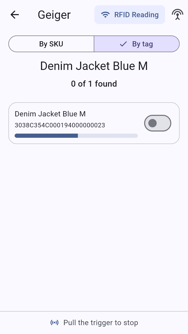
| By tag | A card for each of the product's tags the reader picks up, each with its own bar and tag number. | Finding every item of the product one by one, for example to check off each unit you expect to be there. |
Mark Items as Found
In the By tag view:
- When you reach an item, turn on the switch on its card to mark it Found.
- Check the count at the top (for example 1 of 3 found) to see how many are left.