![Ramp_Logo_Saphire-Nov-06-2023-11-33-51-7748-PM.png]](https://support.ramprfid.com/hs-fs/hubfs/Ramp_Logo_Saphire-Nov-06-2023-11-33-51-7748-PM.png?height=39&name=Ramp_Logo_Saphire-Nov-06-2023-11-33-51-7748-PM.png)
Observed Behaviour
The following behaviour may indicate a connectivity issue:
-
Printer is not detected by the computer or network
-
Printer appears offline or disconnected
-
Print jobs remain queued and do not print
-
Printer disconnects intermittently during use
-
Test prints fail to send or complete
Resolution
Check Network Connection
Verify that the printer is connected to the computer or network using a supported interface.
-
Confirm the printer is connected via Ethernet or USB, depending on the intended setup
-
Verify that all cables are securely connected and undamaged
Restart the printer and associated network equipment before proceeding.
Attempting an Alternate Connection Method
Changing the connection method can help isolate the source of the issue.
-
If using Wi-Fi, connect the printer via USB
-
If using USB, connect the printer via Ethernet or Wi-Fi
After changing the connection method, perform a test print to verify connectivity.
Performing a Test Print
A test print helps determine whether the issue is related to connectivity or the Ramp Print Application.
On your computer:
-
Open Settings
-
Navigate to Printers & Scanners
-
Select the SATO CL4NX printer driver
-
Select Print Test Page
After the test print:
-
If the test page does not print, refer to Firmware and Driver Compatibility.
- If the test page prints successfully, refer to the Ramp Print Application Issues section
Firmware and Driver Compatibility
Reinstalling SATO Printer Drivers
Reinstalling printer drivers can resolve compatibility or corruption issues.
Download Link: SATO_8.4.0_20442
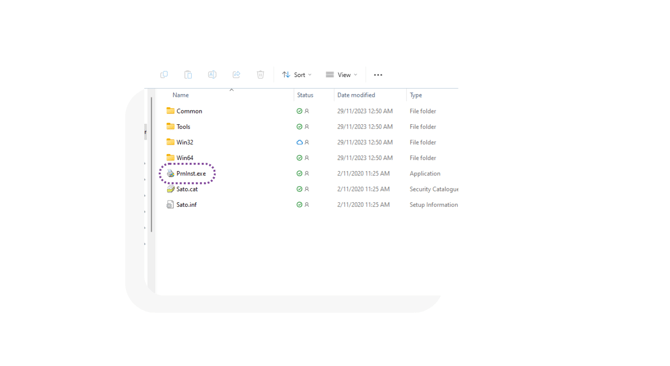
- Extract the folder that has been downloaded. By default, it will be downloaded to the Downloads folder on your machine.
- Locate and launch PrnInst.exe.
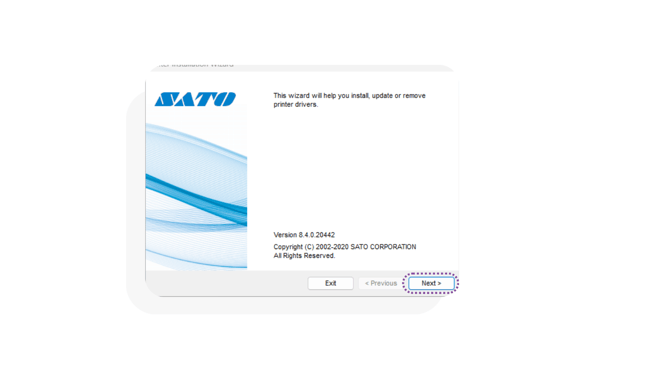
- In the installation wizard, select Next.
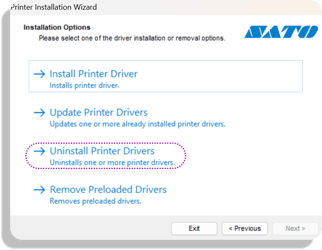
- Select Uninstall Printer Driver.
- Select the driver to remove.
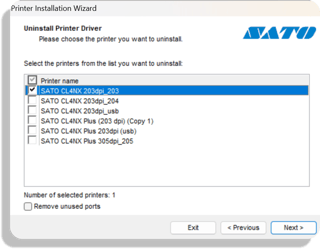
- Select Next to complete removal.
- Once the printer driver is successfully removed, follow the guide on How to Install Ramp Print Software to reinstall the driver.
Changing the Printer Protocol
Incorrect protocol configuration can prevent communication.
On the printer:-
On the printer navigate to Applications.
- Select Protocol
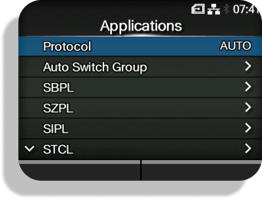
- Select SBPL.
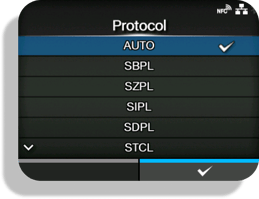
- Press the right soft key to save the configuration.
- Perform a test print after saving the change.
Ramp Print Application Issues
Installing Required Executables
If the test page prints successfully but the printer does not connect through the Ramp Print Application, required runtime dependencies may be missing.
Install the following packages, then restart the computer: