![Ramp_Logo_Saphire-Nov-06-2023-11-33-51-7748-PM.png]](https://support.ramprfid.com/hs-fs/hubfs/Ramp_Logo_Saphire-Nov-06-2023-11-33-51-7748-PM.png?height=39&name=Ramp_Logo_Saphire-Nov-06-2023-11-33-51-7748-PM.png)
1. Sign in to your account on the Ramp Web Portal using your current username and password.
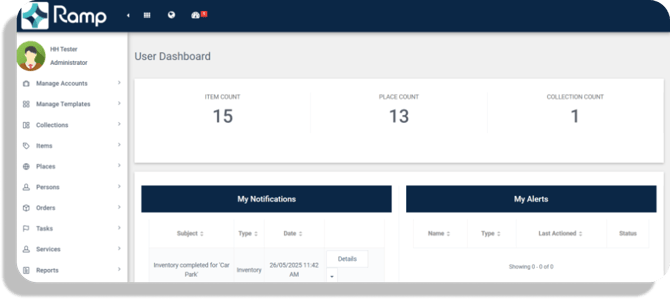
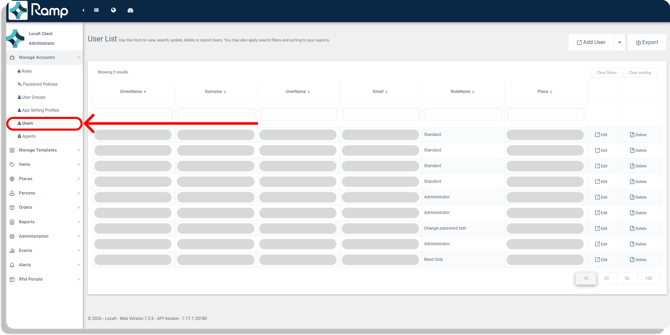
2. On the left hand side menu, click Manage Accounts -> Users.
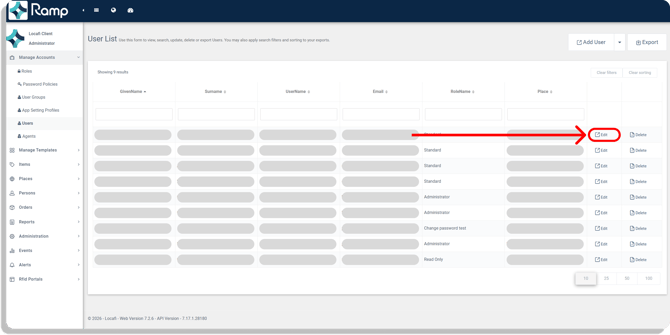
3. Find the user and click Edit.
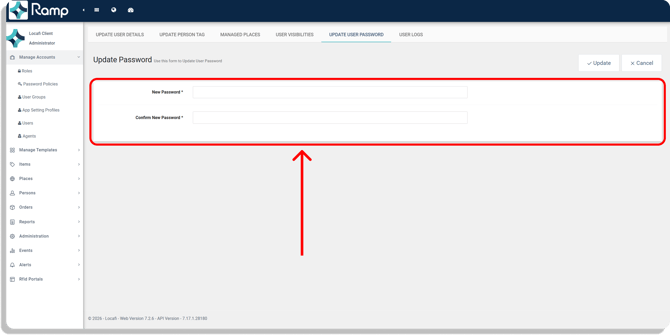
4. On the user's profile, click the Update User Password tab at the top of the page.
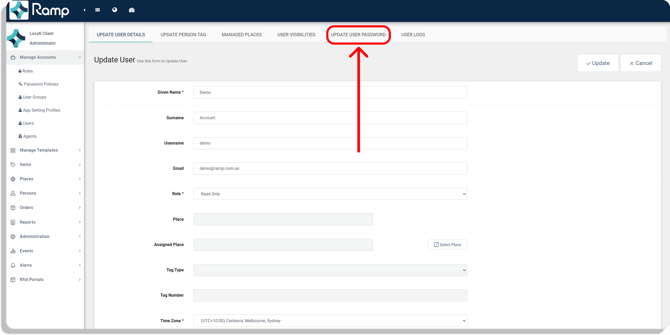
5. Enter the new password, and then re-enter the new password to confirm.
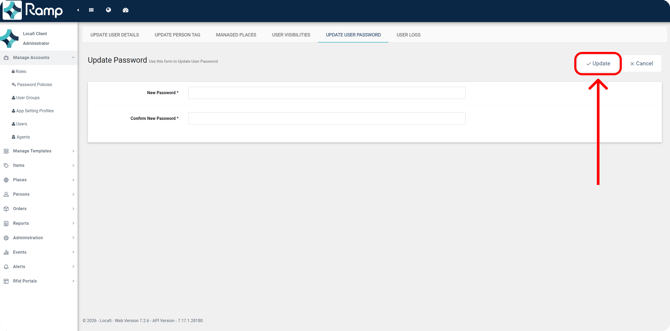
6. Click Update to save the changes.
Send the user the new password to allow them to login.
They can choose to reset their password by following the instructions in Changing your password in the Ramp Web Portal.