![Ramp_Logo_Saphire-Nov-06-2023-11-33-51-7748-PM.png]](https://support.ramprfid.com/hs-fs/hubfs/Ramp_Logo_Saphire-Nov-06-2023-11-33-51-7748-PM.png?height=39&name=Ramp_Logo_Saphire-Nov-06-2023-11-33-51-7748-PM.png)
Overview
When you are in the process of performing a stocktake, you can validate the results of the stocktake on the RFID handheld or on the Ramp Web Portal.
This article will explain how to download the variance report from the Ramp Web Portal. To learn how to validate from the RFID handheld, please see Validating a Stocktake on the RFID Handheld.
Exporting the Variance Report
1. Log in to the Ramp Web Portal.
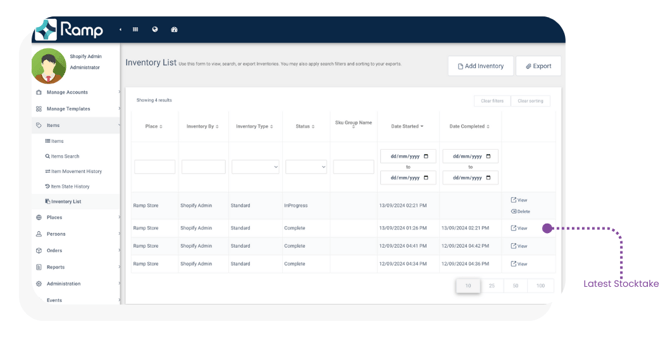
2. Navigate to Items -> Inventory List.
3. Select View on the relevant stocktake.
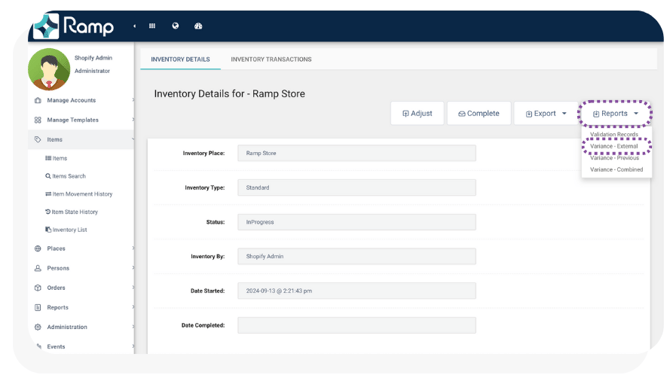
4. Select Reports -> Variance - External.
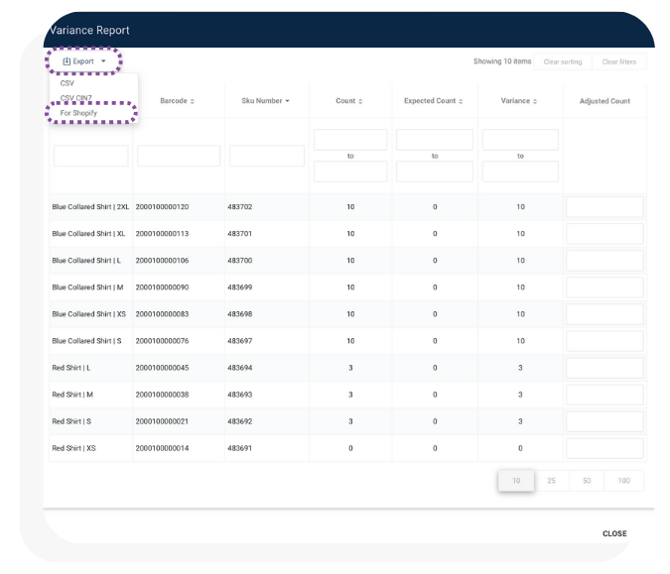
5. Select Export -> For Shopify to download the CSV file.
Reviewing the Variance
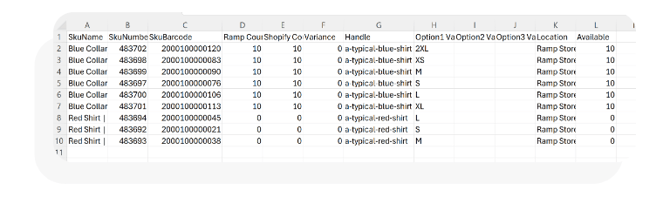
The exported file contains two sections:
Variance Analysis (Columns A-F)
These columns are for review and verification only.
| Column | Field | Description |
| A | SkuName | SKU display name |
| B | SkuNumber | Unique SKU identifier |
| C | SkuBarcode | Barcode identifier |
| D | Ramp Count | Scanned stock count |
| E | Shopify Count | Current Shopify stock |
| F | Variance | Difference between Ramp and Shopify |
Only the Ramp Count column may be adjusted if corrections are required.
Shopify Upload (Columns G-L)
These columns are formatted for Shopify inventory import.
| Column | Field | Purpose |
| G | Handle | Shopify product identifier |
| H | Option1 Value | Variant option 1 |
| I | Option2 Value | Variant option 2 |
| J | Option3 Value | Variant option 3 |
| K | Location | Store location |
| L | Available | Final stock value to upload |
Verification
Before proceeding:
- Review large discrepancies between Ramp count and Shopify count.
- Confirm zero-quantity stock results
- Perform another cycle count if required
- Investigate potential missed reads or misplaced items