![Ramp_Logo_Saphire-Nov-06-2023-11-33-51-7748-PM.png]](https://support.ramprfid.com/hs-fs/hubfs/Ramp_Logo_Saphire-Nov-06-2023-11-33-51-7748-PM.png?height=39&name=Ramp_Logo_Saphire-Nov-06-2023-11-33-51-7748-PM.png)
The purpose of the validation report is to allow for validation of a stocktake to take place in Ramp’s system before a stocktake is completed.
The validation rules can be set up on the Ramp Web Portal, by configuring the inventory settings. For more information, see How to configure the inventory settings for stocktakes.
Stocktakes can also be validated using the Ramp Web Portal. For more information, please see How to Validate a Stocktake on the Ramp Web Portal.
1. If the stocktake has been successfully completed, the buttons at the bottom of the screen will disappear. In this case, the stocktake has passed the validation and is automatically completed.
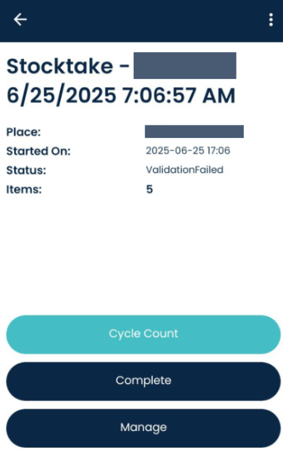
2. If the validation checks fail, then it will show 3 buttons like below. You will need to manually validate it before it can be completed.
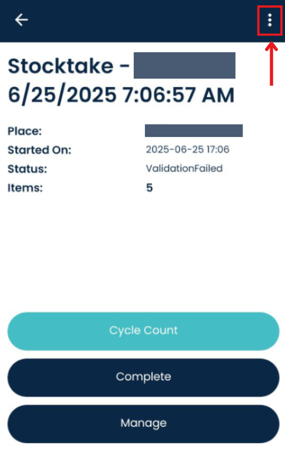
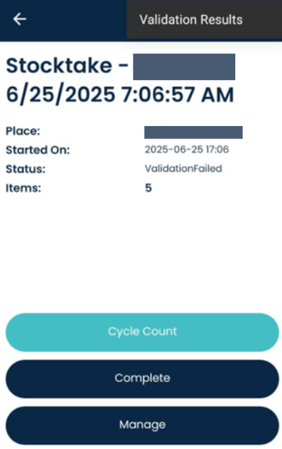
3. To check the variance quantities on the handheld, tap the three dots at the top left, then tap Validation Results.

5. If you want to continue to scan tags, then tap the back arrow and tap Cycle Count.
6. To manually approve or reject the stocktake, tap Manage.
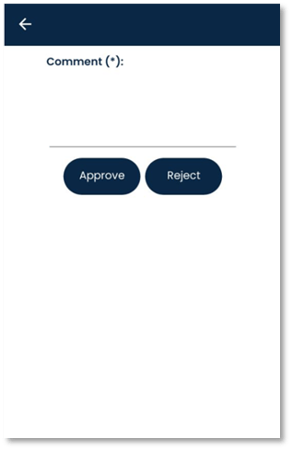
6. You can enter in a comment and then approve or reject the stocktake. If you are happy with the stocktake, then type in a comment and tap the Approve Otherwise you can Reject the stocktake.