![Ramp_Logo_Saphire-Nov-06-2023-11-33-51-7748-PM.png]](https://support.ramprfid.com/hs-fs/hubfs/Ramp_Logo_Saphire-Nov-06-2023-11-33-51-7748-PM.png?height=39&name=Ramp_Logo_Saphire-Nov-06-2023-11-33-51-7748-PM.png)
Observed Behavior
The following printing behavior may indicate reduced RFID tag readability:
-
Tags are printed correctly but are not being detected by RFID readers
-
Tags are being skipped during printing and are displaying an error message
-
Tag Not Found message is appearing during printing
-
Multiple Tag Error message is appearing during printing
- A different RFID tag has been added
Resolution
Restarting the SATO CL4NX
Restart the SATO CL4NX before applying configuration changes to clear any unintended state. If a profile is loaded after restart, verify that the correct tag profile is selected.
For restart instructions, refer to the dedicated CL4NX restart article.
Calibrating the SATO CL4NX
Media calibration ensures that the printer correctly detects label gaps or marks and positions print output accurately, ensuring consistent RFID performance.
✅ It is recommended to recalibrate the printer if you've recently changed media types or label size to ensure proper gap detection.
For calibration instructions, refer to the Calibrating the SATO CL4NX article.
Loading a Profile
An RFID tag profile may be stored on the printer for reuse. This profile is setup by Ramp and has been verified.
-
Press the Offline button on the operator panel to switch the printer to Offline mode.
-
Press the Menu button
to open the Settings menu.
-
Use the navigation buttons
 to select Tools, then press Enter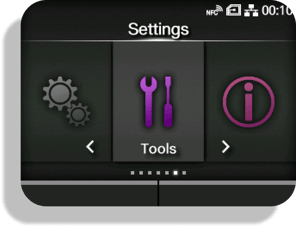
-
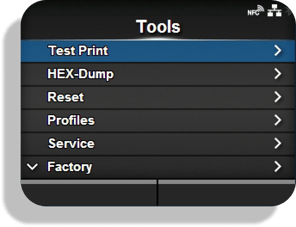
Select Profiles, then press Enter
-
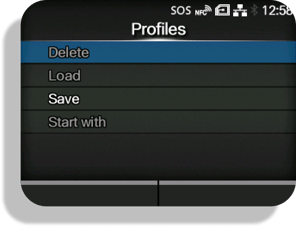
Select Load, then press Enter
-
Select the profile to load, then press Enter
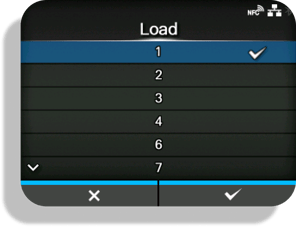
After the process completes, the loaded profile name is displayed in the Load menu.
Adjusting the RFID Power Levels
RFID power settings control how tags are read and encoded during printing. Adjust RFID power levels only after verifying that the correct tag profile is loaded.
✅ If a different RFID tag type is introduced, RFID calibration and power settings may require adjustment.
⚠️It is recommended to contact Ramp Support if assistance is required with adjusting the RFID Power Levels. Incorrect RFID power levels may cause inconsistent RFID encoding during printing.
-
Press the Offline button on the operator panel to switch the printer to Offline mode.
-
Press the Menu button
-
Use the navigation buttons
to select Interface, then press Enter -
Select RFID, then press Enter
-
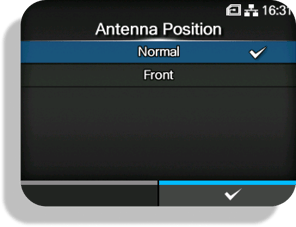
Verify that Antenna Position is set to Front, unless specified otherwise.
-
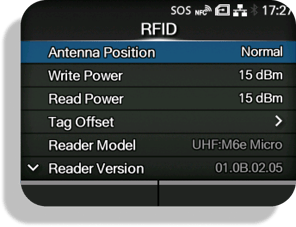
The observed RFID errors determine which settings to adjust.
-
If a Tag Not Found error is observed, increase Read Power and Write Power by 1 and perform a test print.
-
If a Multiple Tag error is observed, decrease Read Power and Write Power by 1 and perform a test print.
-
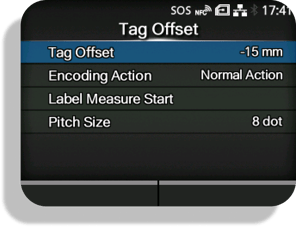
If both Tag Not Found and Multiple Tag errors are observed across multiple tags, adjust the Tag Offset value.
-
-
Maintain a difference where Write Power is set higher than Read Power to account for encoding requirements.
Apply one adjustment at a time and reprint a test label after each change.