
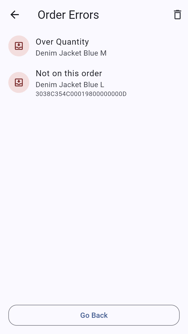
When something is wrong with an order, Errors shows on the order with the number of problems, in place of Save. Tap it to open the Order Errors page, which lists each problem.
Some problems are warnings: you can still save or finish after confirming. Others are errors, which must be fixed before the order can finish. Short lines are only reported once something has been scanned.
For messages that aren't order errors, such as save or connection problems, see Order Messages.
Open the Order Errors
On the order, tap Errors. The Order Errors page lists each problem.
Fix an Over-Quantity Line
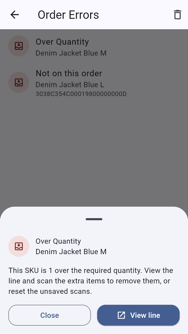
Tap Over Quantity. The explanation says how many items are extra.
Tap View line. On a tablet, the View line button is on the error's row.
The line shows every tag scanned against it. Take the extra item away from the pile.
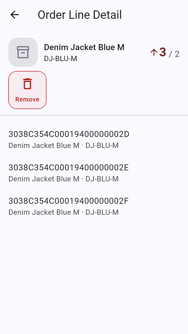
Tap Remove. The reader starts in remove mode.
Scan the extra item. It comes off the line.
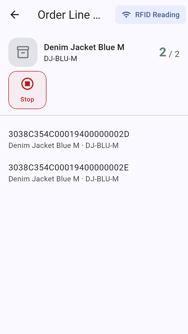
Tap Stop when done.
Tap back.
Fix a Tag Not on the Order
Tap Not on this order to see why.
Tap Remove to take the tag off the order. On a tablet, tap the row's delete icon instead.
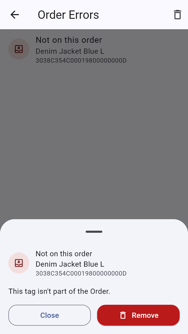
Put the item back where it belongs.
What Each Error Means
| Label | What it means | How to fix it |
|---|---|---|
| Not on this order | You scanned a tag that isn't part of the order. | Put the item aside and tap Remove. |
| Under Quantity | A line is short: "Scan N more items." | Find and scan the missing items. On an order that doesn't need exact quantities, Finish asks you to confirm closing short. |
| Over Quantity | A line has more items than ordered. | Tap View line, then Remove, and scan the extra items to take them off. Or tap Reset to clear the unsaved scans and scan again. |
| Unidentified tag | The tag couldn't be identified. | Rescan the item. If it still fails, set it aside and report the tag. |
| Unknown tag | The server doesn't know this tag. | The item isn't registered. Set it aside and remove it, and ask for it to be tagged. |
| SKU not on order | The item's product isn't on the order. | Put it aside and take its tags off the line. |
| Wrong place | The item isn't at the place the order ships from. | Remove it from the order and check where the item should be. |
| Item state | The item's status doesn't allow it on the order (for example, it's already on another order or marked missing). | Remove it from the order. |
| Property mismatch | The item doesn't meet the line's rules (for example, the wrong size or batch). | Remove it from the order and pick a matching item. |
| Constraint failed | The tag doesn't meet the product's rules for this order. | Remove it and scan a different item. |
| Quantity | The line's quantity breaks a rule set on the order. | Scan more, or take tags off the line. |
| Receipt | This item can't be received against its line. | Remove it from the order. |
| Line not added | The server didn't accept a new line for an extra product. | Remove the item, or ask your administrator whether extra products can be added. |
When every error is fixed, Save is available again. See How to Pick a Sales Order to save and finish.