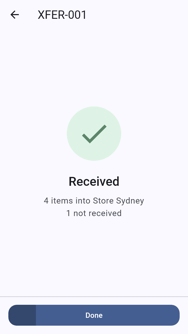
Transfers move stock between your own stores and warehouses. They are picked at the sending place and received at the place they arrive. Receive a transfer when a delivery from another of your stores or warehouses arrives.
If the box holds a product that isn't on the transfer, it is added to the transfer as a new line, so it can be booked in rather than left on the dock. Your organisation chooses this. On some devices these items are refused instead, and show under Errors. See How to Fix Order Errors.
Open the Transfer
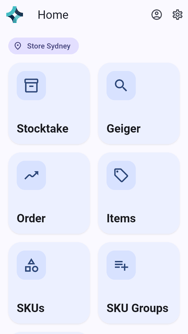
On the home screen, tap Order.
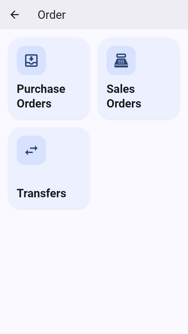
Tap Transfers.
Tap Receive at the top. The list shows orders on their way to you. To find an order, search by order number.
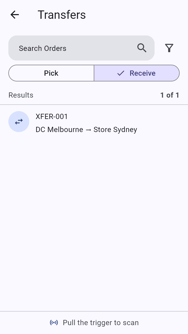
Tap the order. The lines show how many items are expected.
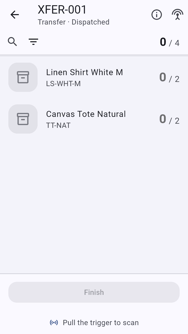
Scan the Delivery
Click the trigger to start reading.
Scan the delivery as you unpack it.
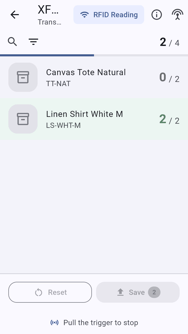
A product that isn't on the transfer is added as a new line.
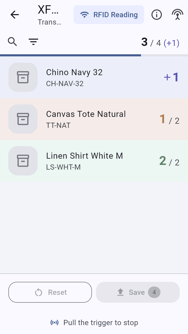
Click the trigger to stop. The page shows how many items were found against the number sent.
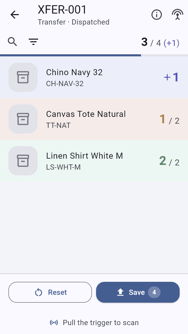
Save and Finish
Tap Save.
If new lines were added, the app asks first: This adds one new line to the order. Continue? Tap Save to add them, or cancel and remove the item.
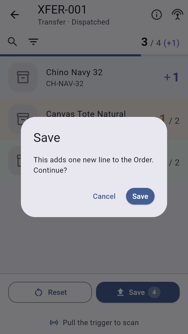
Wait for Your progress was saved.
Tap Finish.
If items are missing, the app warns you, for example One item sent on … hasn't been scanned. It'll be marked Missing. If the items really haven't arrived, tap Finish. If they might still be in the box, cancel and scan again first.
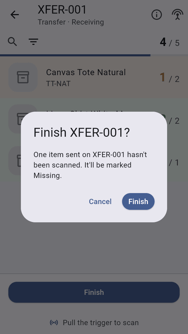
The order shows Received and the items are now at your store. Tap Done.