![Ramp_Logo_Saphire-Nov-06-2023-11-33-51-7748-PM.png]](https://support.ramprfid.com/hs-fs/hubfs/Ramp_Logo_Saphire-Nov-06-2023-11-33-51-7748-PM.png?height=39&name=Ramp_Logo_Saphire-Nov-06-2023-11-33-51-7748-PM.png)
Overview
After completing a stocktake using the RFID handheld, stock levels can be:
-
Automatically updated via Current Stock Sync, or
-
Manually reviewed and imported into Shopify
It is recommended to perform stocktake review and import outside of peak trading hours to minimise discrepancies caused by ongoing sales.
To learn how to start and scan a stocktake, refer to Performing a Stocktake.
How to Automatically Upload a Stocktake to Shopify
The automatic process will need to be configured with the Ramp team first; please contact support@ramp.com.au for more information.
How to Manually Upload a Stocktake to Shopify
Refer to How to Validate a Stocktake on the Ramp Web Portal for more information about validating the stocktake results.
Downloading the Shopify Upload File
1. Log in to the Ramp Web Portal.
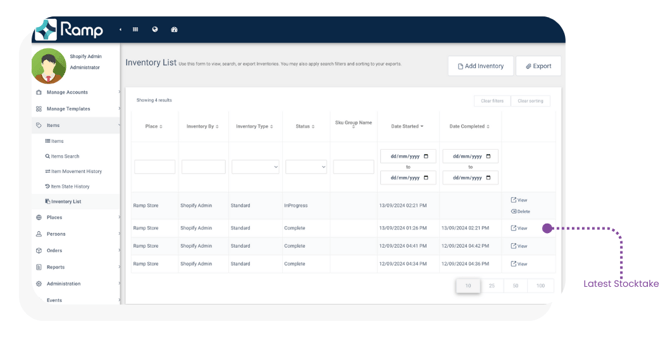
2. Navigate to Items -> Inventory List.
3. Select View on the relevant stocktake.
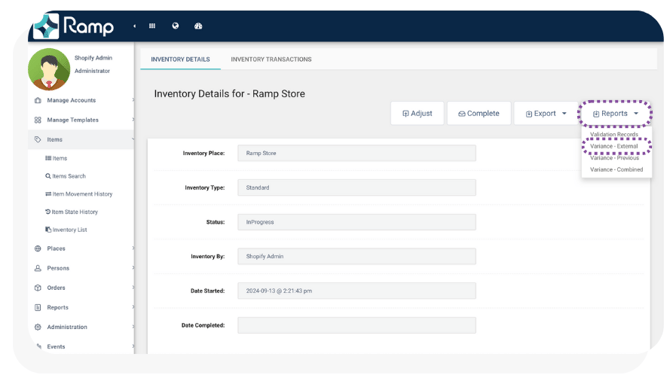
4. Select Reports -> Variance - External.
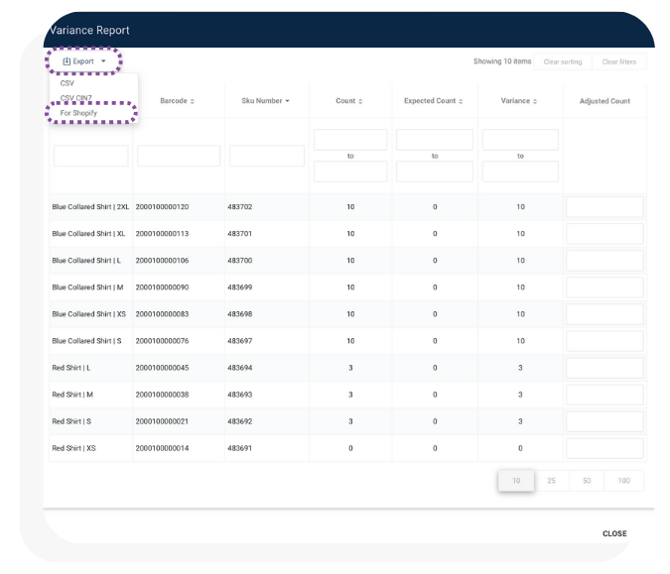
5. Select Export -> For Shopify to download the CSV file.
Preparing the Shopify Upload File
Columns G-L are formatted for the Shopify inventory import. Only the Available column is used by Shopify to update inventory.
If you adjusted Ramp Count during review, ensure the correct value appears in Available.
Creating the Upload File
1. Open a new Excel or CSV file.
2. Copy columns G-L into the new file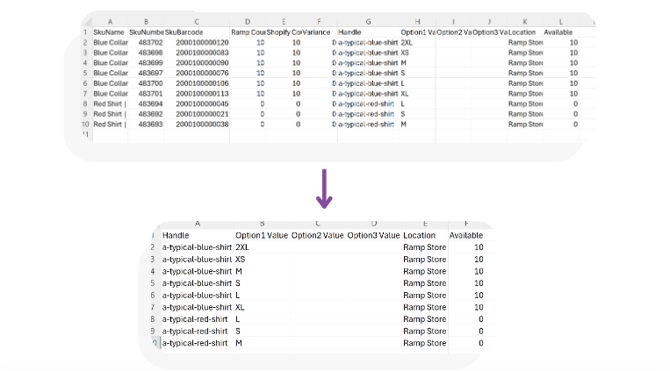
3. Save the file as a CSV file.
Select Upload File to complete the process
Importing into Shopify
-
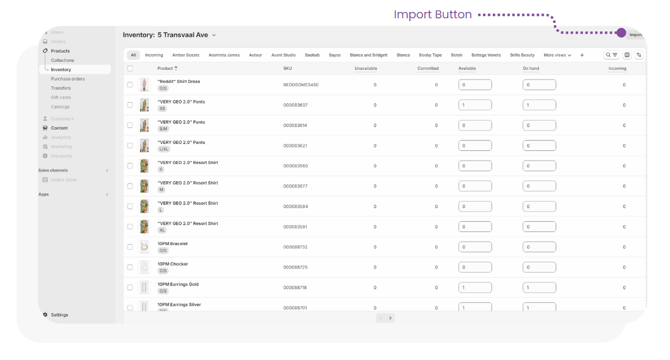
In Shopify, navigate to Products > Inventory
-
Select Import
-
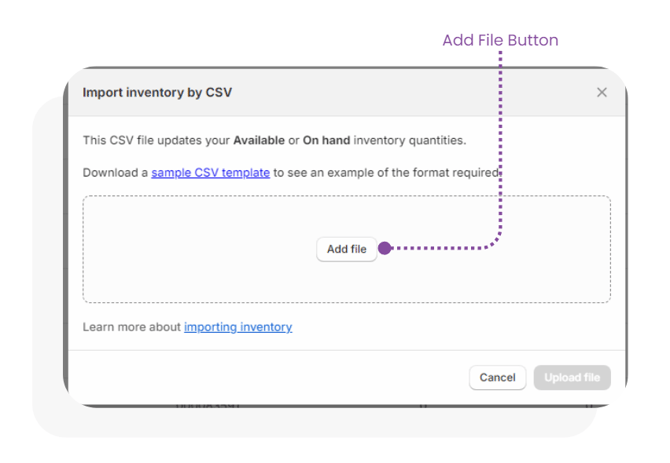
Select Add File.
-
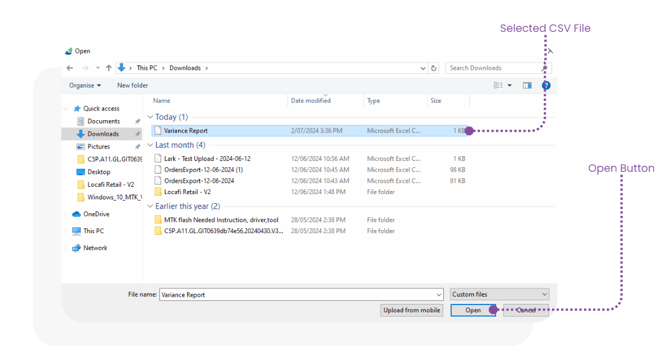
Upload the prepared CSV file.
-
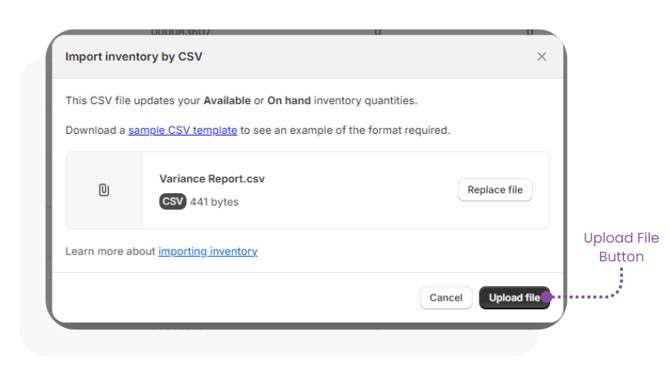
Select Upload File to complete the process.
Operational Considerations
-
Manual import overwrites existing Shopify inventory values.
-
Sales occurring between stocktake and import may affect accuracy.
-
Always verify the file before uploading.
-
Retain a backup of the original export for audit purposes.