![Ramp_Logo_Saphire-Nov-06-2023-11-33-51-7748-PM.png]](https://support.ramprfid.com/hs-fs/hubfs/Ramp_Logo_Saphire-Nov-06-2023-11-33-51-7748-PM.png?height=39&name=Ramp_Logo_Saphire-Nov-06-2023-11-33-51-7748-PM.png)
Lookup Item finds one individual tagged item. Use it to see exactly where an item is recorded, check its tag number, update its details or track it down on the shop floor.
An item is one individual, physical unit of a product, with its own RFID tag and unique tag number – for example, the single navy polo shirt hanging on rail 3. To look up a product in general (its price, barcode or stock levels), see How to Perform a SKU Lookup
What you need
- A handheld device with the Ramp Retail app installed, and your login details.
- A network connection, so the app can look up the latest information.
Open Lookup SKU
- Log in to the Ramp Retail app. Your store name shows at the top of the home screen.
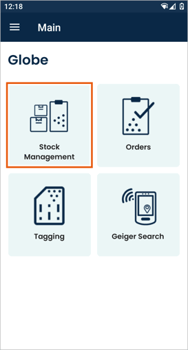
- Tap Stock Management.
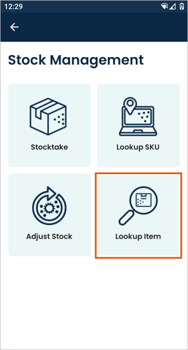
- Tap Lookup Item.
Search for an item
The main way to find an item is to scan its RFID tag. If you can't scan the tag, use one of the alternatives below.
|
Method |
Use it when |
|
Scan the RFID tag |
You have the item in front of you. It finds exactly that item. |
|
Type the tag or asset number |
The tag won't scan, or the item isn't with you. |
|
Scan the barcode on the tag |
Your RFID tags have a barcode printed on them, and the tag won't scan. |
- Hold the device close to the item's tag – within a few centimetres.
- Press the trigger once. The app reads the single closest tag and searches for that item.
If you can't scan the tag:
-
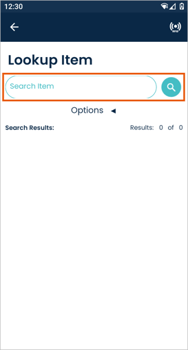
Type the tag or asset number: tap the Search Item box, type the number, then tap the magnifying glass or press Enter. To search by asset number, switch on Search Asset Number in Options first (see below).
-
Scan the barcode on the tag: if your RFID tags have a barcode printed on them, point the scanner at it and double-press the trigger.
Understanding the results
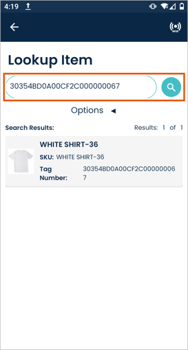
Each result shows the item's name, its SKU and its tag number. Results: X of Y shows how many items are listed out of the total found. Scroll down to load more.
No results?
- The tag isn't in the system yet, or the item has been removed. Encoding a tag doesn't add it to the system on its own. You can check the tag number on loca.fi.
- "Search Item Tag Number" is switched off. Tap Options and switch it on.
- No network connection. Reconnect to Wi-Fi or mobile data and search again.
- You typed the search. Check the spelling, try fewer characters, and make sure Exact Text Match is off.
View an item's details
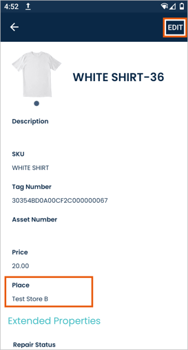
Tap a result to open the item's details page.
Edit an item's details
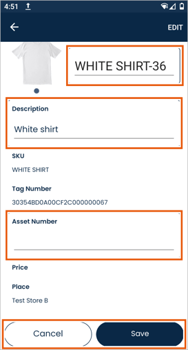
You can update an item's name, description and asset number.
- Open the item's details page.
- Tap Edit at the top of the screen. The fields you can change become editable.
- Update the Name, Description or Asset Number.
- Tap Save at the bottom of the screen to keep your changes, or Cancel to undo them.
Tip: While editing, tap a field and scan a barcode to fill it in automatically. This is handy for asset numbers.
Other details, such as the SKU, Tag Number, Price and Place, can't be changed here. The price is hidden while you're editing and comes back when you tap Save or Cancel.
Find an item on the shop floor (Geiger)
If you know an item is in store but can't see it, the Geiger feature can guide you to it.
Looking for any unit of a product, rather than one specific item? See the Geiger Search article.
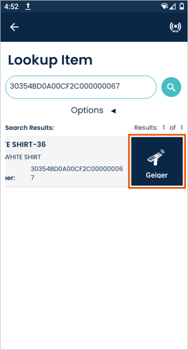
- In the Lookup Item results, slide your finger from right to left across the item.
- Tap Geiger.
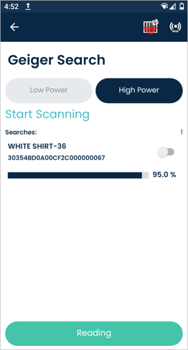
- Press the trigger once to start scanning, then walk around. The signal percentage on screen rises and the sound changes as you get closer to the item.
- Press the trigger again to stop.
Change the search options
You can choose which details the app searches in. Tap Options under the search box to open them, switch each option on or off, then tap Options again to close. The app remembers your choices for next time.
|
Option |
What it does |
Starts as |
|
Exact Text Match |
Only finds products that match exactly what you typed, rather than anything that contains it. Useful when a short code matches lots of products. |
Off |
|
Search Name |
Searches product names. |
On |
|
Search SKU Number |
Searches SKU numbers. |
On |
|
Search SKU Barcode |
Searches barcode numbers. |
On |
|
Search Item Code |
Searches item codes. |
On |
|
Search GTIN |
Searches the GTIN (the global product number stored in barcodes and RFID tags). |
On |
|
Search Custom Prefix |
Searches products that use your business's own tag numbering. |
On |
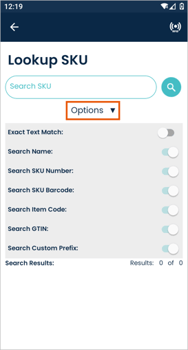
If an option is greyed out, your administrator has locked it.
Tips and troubleshooting
|
What you see |
What to do |
|
"Search term unchanged" |
You searched for the same thing twice. Change the search text, or change an option, then search again. |
|
Too many results |
Type more of the name or tag number, or switch on Exact Text Match. |
|
Scanning doesn't do anything |
Hold the device right next to the item's tag and press the trigger once. If it still doesn't read, tap the Settings icon at the top of the screen to check the reader is connected. |
|
A message saying the item couldn't be found |
It may have been removed. Search again to refresh the list. |
|
My changes didn't save |
Make sure you tapped Save, not Cancel, and that you have a network connection. |