
Completing a stocktake checks the saved count against the expected quantities. If every line is within its allowed variance, validation passes. If any line is outside it, validation fails, and you can recount or ask a place manager to decide.
Some organisations need a place manager to approve every count, even one that passes. If you aren't a manager of the place, Waiting for approval shows after you complete: the count is with your manager, and there is nothing more for you to do. See How to Approve or Reject a Stocktake.
What You Need
- A saved count. See How to Count Stock.
Complete a Matching Stocktake
Check that every line shows the same counted and expected figures. The count is ready to complete.
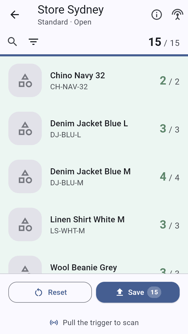
Tap Complete.
Tap Complete again in the dialog. The saved count is checked against the expected quantities.
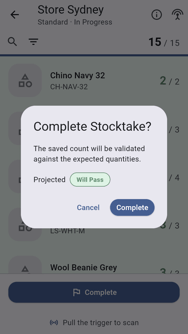
If every line is within its allowed variance, validation passes and Stocktake complete shows with the count's accuracy and net units.
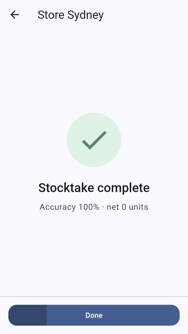
Tap Done.
Complete a Stocktake with Variances
Tap Complete.
Tap Complete again in the dialog to confirm.
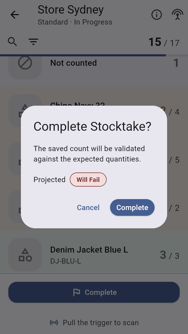
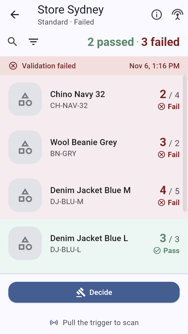
If any line is outside its allowed variance, validation fails:
- If you are not a manager of the place, Validation failed shows. Tap View result to see the lines, or Done to come back later.
- If you are a manager of the place, the count stays open with a Decide button.
Review the Result
Look through the result. It marks every line Pass or Fail, and failed lines are sorted to the top.
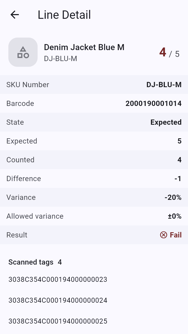
Tap a line to see its expected and counted figures, the difference, the allowed variance and the tags scanned.
Recount the Short Areas
- Go back to the count.
- Scan the areas that were short, slowly, getting close to the stock. See How to Count Stock for how to scan thoroughly.
- Tap Save.
- Tap Complete again.
Send to a Manager for Approval
A place manager can tap Decide to approve the count as it is or reject it. See How to Approve or Reject a Stocktake.