
Once a count is open, you walk the place with the reader and the app counts every tag it reads. You can scan one area, save, then scan the next.
The count is only as good as the scan. An item the reader never sees counts as missing.
What You Need
- An open count. See How to Start a Stocktake.
- A licensed handheld device with its reader turned on.
Before You Count
- Count outside trading hours if you can. Stock that sells or moves during the count shows up as a difference.
- Charge the handhelds so they last the whole count.
- Clear away loose tags. Spare, old or cut-off tags left in bins, under counters or in storage are read too.
- Tidy the stock. Turn labels outwards and stack items neatly, so tags aren't buried or pressed flat against each other.
Scan Thoroughly
- Wave the reader in a slow S shape, side to side as you move down each fixture, from the top shelf to the bottom.
- Get close to every rack, shelf and table. Hold the reader within arm's length of the stock, and reach into deep shelves and behind the front rows.
- Sweep in two directions: side to side, then up and down, so tags are read from different angles.
- Cover everything: back rooms, fitting rooms, under counters, and stock in boxes.
- Move dense stock. Tags in tightly packed clothing or bins of small items can hide behind each other. Slide garments along the rack, or tip out a container and scan the items as you put them back.
- Do two passes: a quicker pass over the whole area, then a slower one to pick up tags you missed. Save between them if you like.
- Walk at a slow, steady pace, and don't skip an aisle because it "looks done".
Count an Area
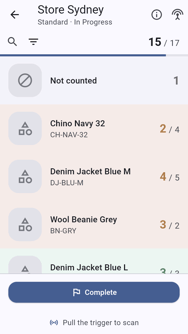
Click the trigger to start reading.
Walk the area.
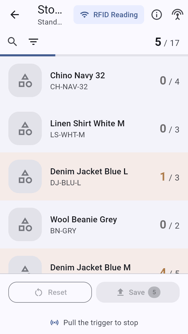
Watch the counts climb as tags are read.
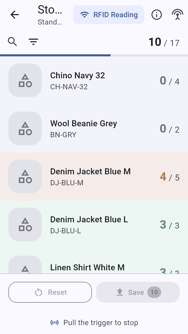
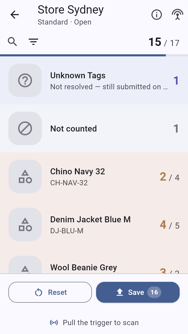
Click the trigger again to stop. Lines are coloured by how they compare with the expected quantity. Tags that don't belong to any product are listed under Unknown Tags.
Understand Expected Quantities
Each line on the count shows counted / expected, for example 4 / 5.
- Counted is the number of that product's tags you have scanned.
- Expected is how many the system thinks are at the place. These figures are the store's external counts: the stock figures your head office or stock system (ERP) sends for each product at the store.
- Expected figures are taken when the count is created, so stock that moves during the count doesn't change them. The count's details (the i icon) show Expected as of with the time they were taken.
When you complete the count, each line is checked against its expected figure. A line passes if the difference is within the allowed variance your organisation sets.
If a count shows no expected figures, your organisation doesn't validate counts against expected stock. Completing the count simply records what you counted.
Save the Count
Tap Save. The count is uploaded and Stocktake Processing shows.
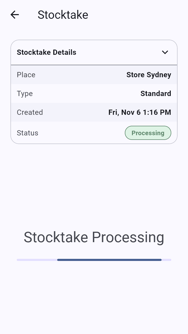
Wait for the count to show In Progress before you scan, save or complete again.
If the server refused some tags, a N tags rejected page lists them with the reason. Tap Go Back to return to the count.
You can save as many times as you like: scan an area, save, then scan the next.
When every area is counted, complete the count. See How to Complete a Stocktake.