
A stocktake counts the stock at a place with the RFID reader and compares the count with the stock the system expects to be there. Start one for a full count of the store, or for a quick check of one range of products.
To count only one range of products, see How to Perform a SKU Group Stocktake.
What You Need
- A licensed handheld device with the Ramp app and a reader. See How to Check the Device Licence.
- The device's default place set to your store. See How to Change the Default Place.
Choose the Stocktake Type
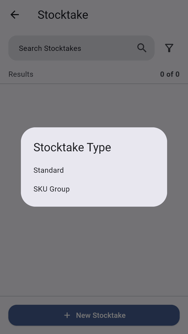
When you tap New Stocktake, you may be asked which type of stocktake to start.
| Type | What it counts | When to use it |
|---|---|---|
| Standard | Everything at the place: every product the system expects there. | A full count of the store, for example at the end of a period. Only one Standard count can be open at a place at a time. |
| SKU Group | Only the products in one saved SKU group (for example "Denim" or "Accessories"). Tags of other products are left out of the count. | A quick spot check of one range without counting the whole store. Several SKU Group counts can be open at a place at once, one per group. |
Start a Stocktake
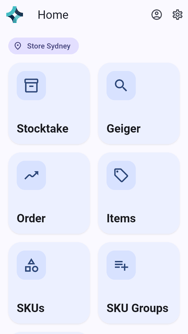
On the home screen, tap Stocktake.
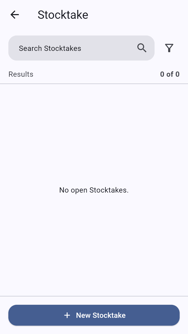
Tap New Stocktake. Any stocktakes already open at your store are listed above it.
If you're asked which type of stocktake to start, tap Standard (or SKU Group). The new stocktake form shows a name, type and place.
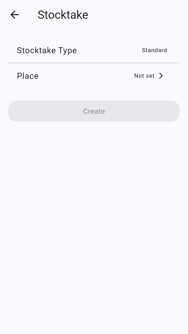
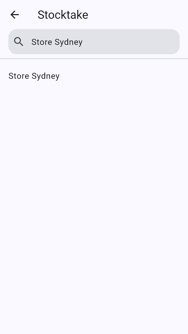
Tap Place, search for your store, and tap it.
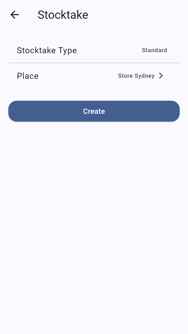
Tap Create. The stocktake opens, ready to scan.
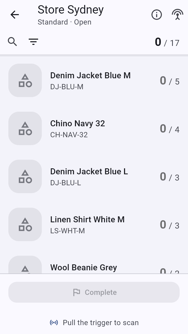
Next, scan the stock. See How to Count Stock.