![Ramp_Logo_Saphire-Nov-06-2023-11-33-51-7748-PM.png]](https://support.ramprfid.com/hs-fs/hubfs/Ramp_Logo_Saphire-Nov-06-2023-11-33-51-7748-PM.png?height=39&name=Ramp_Logo_Saphire-Nov-06-2023-11-33-51-7748-PM.png)
This article replaces the previous Stocky process.
Purchase orders are no longer created or received in Stocky. They are now created in Shopify admin and received in Ramp, where then Ramp sends the received quantities back to Shopify automatically.
See Shopify Purchase Order Sync (Stocky) if your store still receives purchase orders through Stocky.
Overview
Shopify does not provide native purchase order functionality through its API. Purchase orders are linked to inventory transfers, and the supplier sends the stock as one or more shipments against that transfer.
In Ramp, inbound orders are used to represent incoming stock. The integration creates an inbound order for each shipment, and sends the received quantities back to Shopify once the delivery has been scanned.
Integration Flow
Shopify uses a webhook to notify Ramp whenever an inventory shipment is created or edited. As such, the process to trigger this integration is as follows:
- A purchase order is raised in Shopify and ordered. (e.g. Purchase order number PO#011)
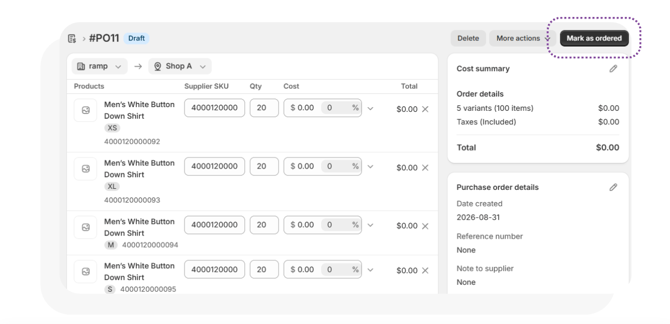
- Once the Purchase Order is Marked as Ordered, a link to an inventory transfer can be created. (e.g. linked transfer TO#0005)
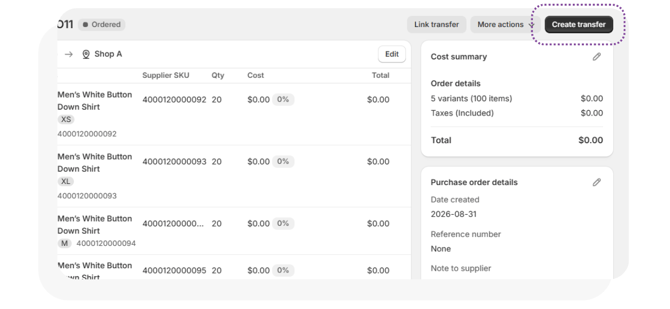
- Within the linked transfer, the stock can be either be marked as shipped as a whole, or partial consignment can be made by adjusting the quantities of the order relating to the shipment.
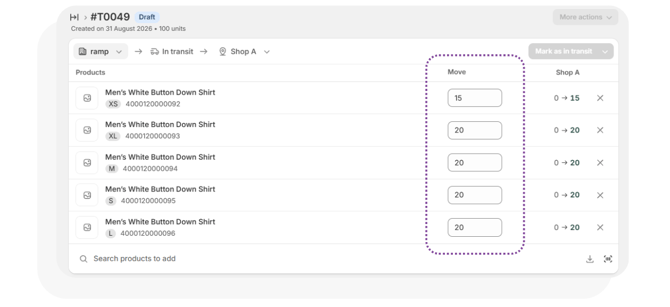
- Once the quantities are adjusted and the Mark In Transit or Mark as Received, Shopify will notify Ramp that a valid shipment has been made.
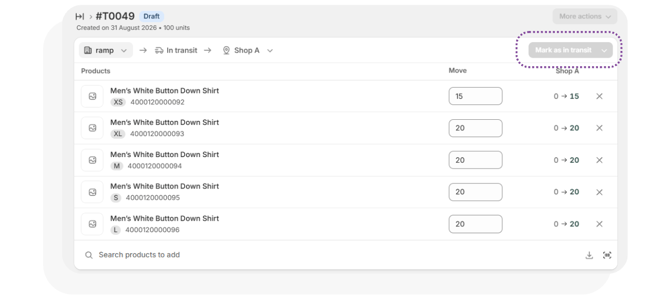
- Ramp will copy the contents of the shipment and create an identical PO in Ramp with an added suffix which denotes which shipment has been synced. (e.g. PO011-1).
- Any products on the shipment that weren't already in the system will also be copied over to Ramp to allow full access to the PO.
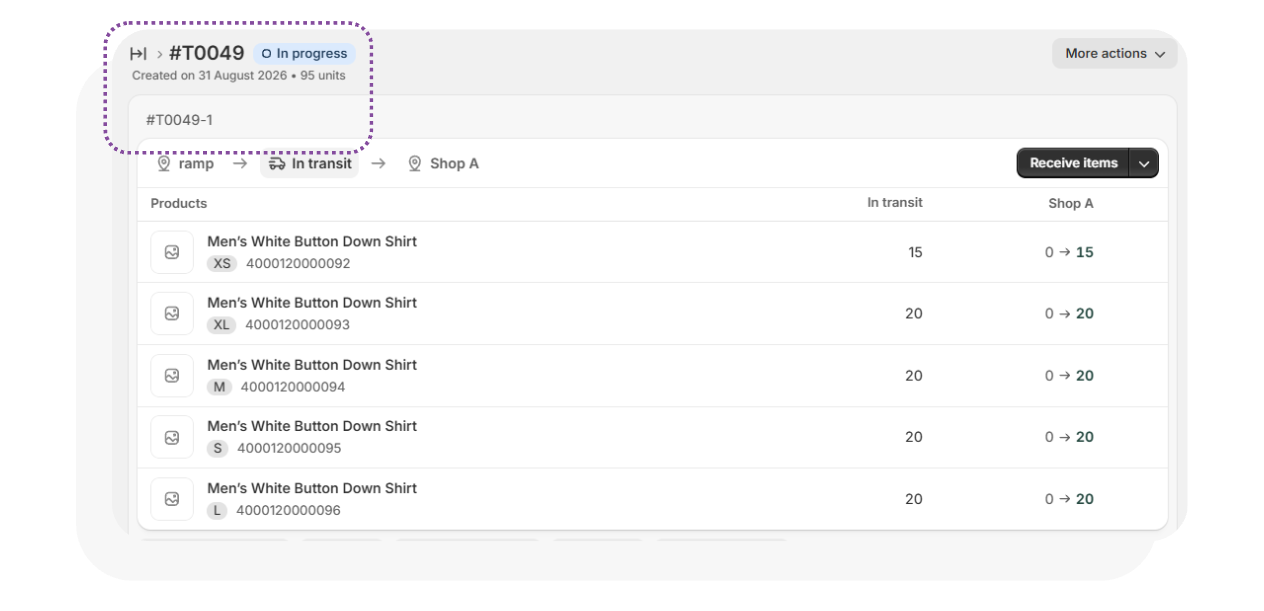
- Any products on the shipment that weren't already in the system will also be copied over to Ramp to allow full access to the PO.
Based on the workflow, Ramp will create one inbound order per shipment. A purchase order that is split across three consignments will product three inbound orders in Ramp.
If a shipment line is added, deleted, or the quantity is changed, the changes will be synced by Ramp.
The quantities that are part of the purchase order will match the quantities that are shipped on each consignment, not the quantities ordered on the original PO.
- e.g. If 100 units were ordered, and 60 are shipped on a consignment, the inbound order will show 60. The remaining 40 would then be marked on a later shipment and create a second consignment/linked inventory transfer.
Order Numbering
Ramp builds the order number from the Shopify purchase order number and the shipment number.
| In Shopify | In Ramp |
| Purchase order #PO3 & Shipment #T289-1 | #PO3-1 |
| Purchase order #PO3 & Shipment #T289-2 | #PO3-2 |
Shopify names shipments after the transfer, so the shipment n umber is taken from the end of the shipment name.
Suppliers and Locations
The receiving location set against the Purchase Order in Shopify will set as the receiving location in Ramp.
The supplier is set as the origin of the transfer. This normally doesn't relate back to a place so Ramp will not create a place for it.
Sync Frequency
The webhook notifies Ramp of any changes made against the linked transfer immediately. Once notified, Ramp will import the set of changes upon the next scheduled sync, which is typically 5 - 10 minutes unless otherwise specified.
Limitations
- Purchase orders with no shipment against them will not sync. The supplier must have shipped the stock or a shipment is created and marked in transit or received.
- The purchase order must be linked to the inventory transfer in Shopify. Without the link, the delivery will be synced as a transfer order instead.
- Transfers in the Draft state cannot be synced.
- Shipments already marked as Received in Shopify are not imported unless otherwise specified.
- Expected arrival dates are not set. Shopify does not provide an expected date on transfers or shipments.
- Ordered quantities are not available in Ramp. Only shipped quantities are synced.
- Purchase orders deleted in Shopify are not removed from Ramp.
Troubleshooting
Purchase Order Not Appearing in Ramp
-
If a purchase order does not appear in Ramp within 15 minutes, verify that the purchase order exists in Shopify and that the linked shipment has been created.
-
Wait for the next sync interval (up to 10 minutes)
-
Contact support@ramp.com.au if the issue persists.
If the inbound order is different to Shopify:
-
Ensure that you're comparing against the linked transfer or Shipment
-
Wait for the next sync interval (up to 15 minutes)
- Contact support@ramp.com.au if discrepancies remain.